@firstpick/pi-package-qt-webui
A Quickshell and Qt Quick desktop client for the Pi coding agent with rich transcript output, extension dialogs, and a supervised local backend.
Package details
Install @firstpick/pi-package-qt-webui from npm and Pi will load the resources declared by the package manifest.
$ pi install npm:@firstpick/pi-package-qt-webui- Package
@firstpick/pi-package-qt-webui- Version
0.2.0- Published
- Oct 13, 2026
- Downloads
- 268/mo · 6/wk
- Author
- firstpick
- License
- MIT
- Types
- extension
- Size
- 2.3 MB
- Dependencies
- 2 dependencies · 0 peers
Pi manifest JSON
{
  "extensions": [
    "./extensions/qt-webui-start.mjs"
  ]
}
Security note
Pi packages can execute code and influence agent behavior. Review the source before installing third-party packages.
README
Qt WebUI
Use Pi in a Linux desktop window built with Quickshell and Qt Quick.
What you can do
- Keep your prompt text until acceptance, and read assistant answers as they stream. Drag to select readable text in transcripts, dialogs, paths, status details, and row metadata, including syntax-highlighted code; Markdown still renders headings, lists, tables, quotes, and links.
- Attach text files and images to a prompt, complete
/commands and@workspace paths while typing, keep an unsent draft per session, and save prompt sequences you run again later. - See what Pi is doing: thinking sections you can show or hide, and a single-line row for every tool call with muted argument details beside its name, status, duration, an expand arrow, and a copy-output icon.
- Answer questions from Pi extensions in native dialogs: pick an option, confirm, type a value, or edit text.
- Steer a running task, queue a follow-up, or abort it; restart Pi or the local backend after a failure.
- Work in a focused violet-charcoal or light counterpart layout with a resizable workspace rail, a readable centered conversation, and a clearly framed prompt editor.
- Search the compact transcript, use browser-style middle-click autoscroll, copy any message, and return to new output with Latest.
- Get a desktop notification naming the relevant Working session when it finishes or Pi needs input; Settled sessions stay quiet until restored.
- See the active provider, model ID, and thinking effort beside the prompt. Open Status when you want the full Pi, Git, usage, and extension details.
- Choose a model from Pi's current scoped-model list, drag explicitly scoped models into a preferred order that persists across restarts, and set thinking effort from drop-ups above the prompt control strip; configure tool, skill, and sampling profiles or compact long conversations from the same strip.
- Search saved Pi sessions from every project by title or folder in one rail, keep active work in Working, move idle sessions to the collapsible Settled section, bulk-settle large backlogs, and restore them whenever you need them.
- Open several projects in tabs, each with its own Pi session, reuse the tab for an already-open saved session, open another saved session in a new tab, and start a Git worktree for a new branch in its own tab.
- Reach every action, tab, model, session, and Pi command from one keyboard-first palette (
Ctrl+K), inspect context and token usage in Status, and review events and diagnostics without leaving the window. - Work in the project directory where you started
qt-webui(your tabs come back after a restart), follow live desktop light/dark changes, or choose Automatic, Light, Dark, or an installed Pi JSON theme without changing Pi's own theme setting.
Install
Install it as a Pi package to add the /qt-webui-start command:
pi install npm:@firstpick/pi-package-qt-webuiFor a standalone terminal command instead, install it globally with npm:
npm install -g @firstpick/pi-package-qt-webuiHow to use it
After installing the Pi package, start Pi in the project you want to open:
cd ~/projects/example
pi
Then enter this command inside Pi:
/qt-webui-startThe command starts Qt WebUI for Pi's current working directory and returns immediately, leaving Pi open. With the global npm installation, run qt-webui from the project directory instead.
Choose a session from Working in the left rail. Use Search workspaces above the lists to filter loaded Working and Settled rows by session title, identifier, or folder. Search is case-insensitive; press Escape or choose × to restore every row. Selecting a session that is already open switches to its tab; selecting another saved session opens it in a new tab and leaves your current tab intact. If another Pi window saves that session, Qt WebUI refreshes the saved-session list and, while the tab is idle, replaces its transcript with the latest complete saved conversation; a background tab gains an unread marker. Use Settle to move an idle session out of the active list. When more than 100 saved sessions remain in Working, a floating Settle All button moves every eligible idle session to Settled and then disappears as the count reaches 100 or fewer. Active runs stay in Working, and a notice summarizes skipped sessions. Both lists show compact last-activity labels: minutes or hours below one day, whole days through 30d, then dd.mm.yyyy for older sessions. When an existing session gets new activity, its row stays in place for five minutes. Qt WebUI then moves it into last-activity order, which keeps active rows from jumping around while you work. The Settled section starts expanded, can be collapsed, and keeps each row quiet with the title, activity label, and Restore. Settled sessions do not send desktop notifications if later background activity finishes or requests input. Restoring never changes the saved conversation. Closing a tab does not settle it, and settling a session does not close its tab. When you close the session you are viewing, the main workspace stays empty instead of selecting or creating another session. Other open sessions remain in Working until you choose one.
Open session rows and tabs show one of four activity labels. blocked means Pi needs your input, working means a run is active, done marks a background run you have not viewed, and idle means no run needs attention. Selecting a done tab clears that marker. Process errors remain visible separately.
By default, Qt WebUI also settles closed sessions after 30 days without activity. Open More options, choose Automatic settlement, and enter 1–3,650 days to change the delay. Lowering it can move older closed sessions to Settled as soon as you save; open tabs stay in Working, and Restore gives a session a fresh grace period.
Open More options and choose Theme to use Automatic, Light, Dark, or a Pi JSON theme from your normal Pi theme locations and installed packages. For example, themes from @firstpick/pi-themes-bundle appear after that package is installed and enabled in Pi. If a saved theme disappears or becomes invalid, Qt WebUI uses your last built-in appearance and retries the saved choice when the theme returns.
Drag the rail's right edge to resize it, or focus that edge with Tab and press Shift+Left / Shift+Right. The prompt workspace keeps enough room for its run controls; press Ctrl+Alt+B to collapse or restore the rail when you need more space. At very narrow widths, it hides automatically. Middle-click the transcript to start autoscrolling. Move the pointer above or below the starting marker to scroll up or down; moving farther away increases the speed. Click again or press Escape to stop. If you scroll up in a transcript, use Latest to return to the newest output and follow new messages again. Then type in the prompt editor below the centered conversation and press Enter (Shift+Enter adds a new line). The prompt control defaults to Steer mode. Switch it to Follow-up mode when you want Enter and the nearby run action to queue the next prompt instead; Alt+Enter always queues a follow-up. The Abort button stays visible even in a narrow window; use More beside it for the other prompt actions. Three animated dots under the last entry show that Pi is still working. The three-line More options menu below the prompt holds Resources, automatic settlement, display preferences, Events, and Diagnostics without crowding the main window. Status opens the Pi, Git, usage, and extension details above the control strip, so those rows do not occupy the window while you are writing or reading. When an extension asks a question, a dialog opens with the choices; scroll its body for long questions or options while the answer buttons remain visible. Escape cancels it.
Tool calls start collapsed. Click ▸ to reveal the argument summary, errors, and output, or ⧉ to copy the available output without expanding. The copy icon is disabled until output arrives. Failed calls stay marked Failed even when collapsed.
Your prompt stays in the editor until accepted. Rejection keeps it available to edit. If a submission times out, its outcome is unknown, so check the session before trying again. Extension answers stay open while submitting and after rejection; a timeout never resends an answer automatically.
You can drag to select readable dialog text, paths, status values, and list metadata without choosing an option or opening a link. Buttons and other controls still act normally. A long selectable field may clip to fit its space; focus it and press Ctrl+A, then Ctrl+C, to copy its complete original text.
If the workspace list is incomplete, a small warning icon appears beside Search workspaces. Hover over it or focus it with Tab to read the warning; it does not appear in your session.
Main window
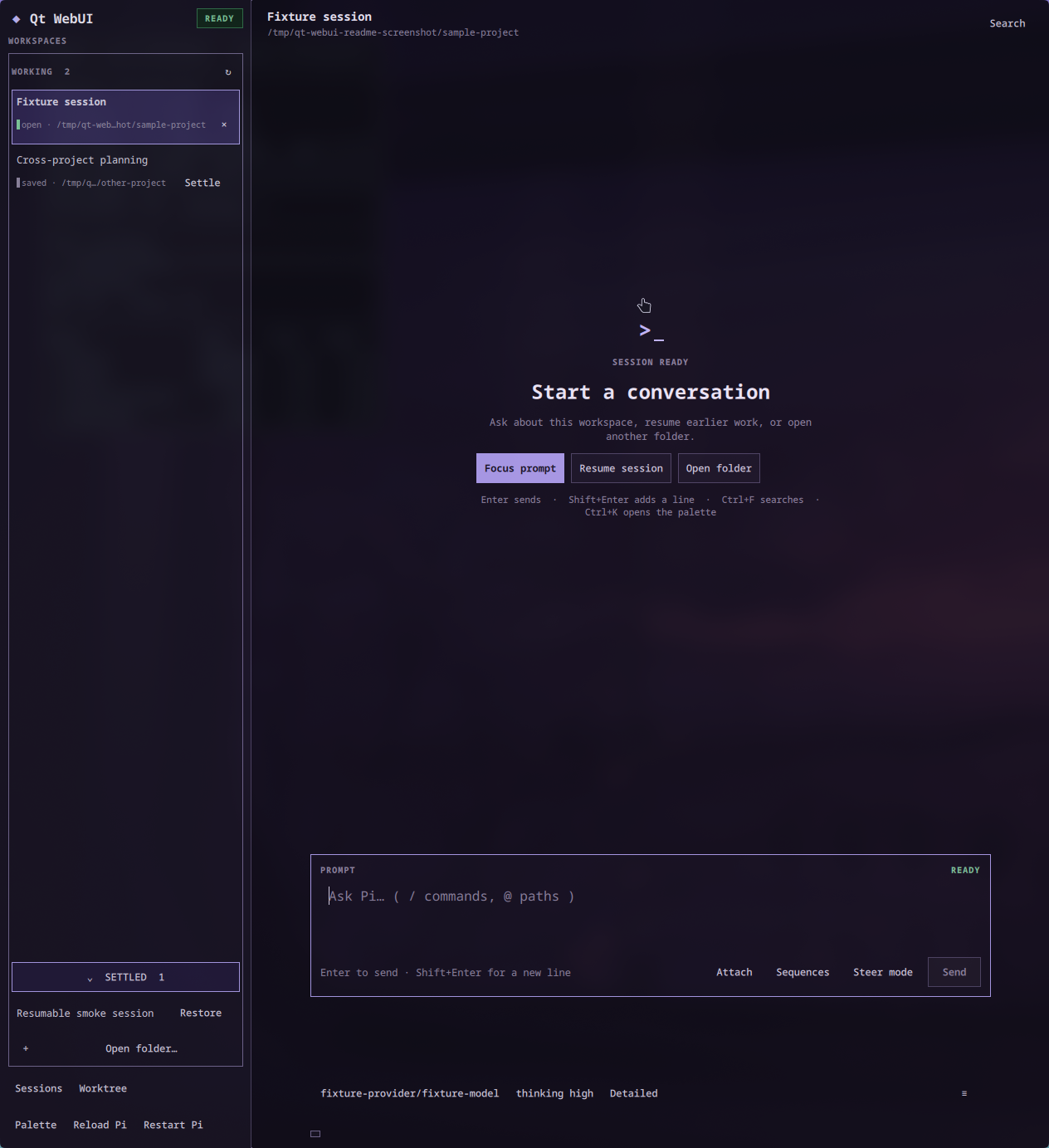
The screenshot uses the package's deterministic fake-session environment; it contains no real project or conversation data.
Tool rows show argument details, such as a file path or command, beside the tool name, ending with ... when they do not fit. Widen the window to see more, or use ▸ to expand the summary and output.
Useful shortcuts:
Ctrl+Fsearches the transcript;EnterandShift+Entermove between matches.Ctrl+Tshows or hides thinking sections.Ctrl+Lreturns focus to the prompt.Ctrl+Mopens Pi's scoped-model list above the model control. When Pi supplies an explicit scope, drag the ≡ handle or pressCtrl+Shift+Up/Ctrl+Shift+Downto reorder it.Ctrl+Eopens thinking effort;Ctrl+Shift+PandCtrl+Shift+Ecycle through the model and effort lists.Ctrl+Shift+Ropens Resources from the More options menu for enabled tools, enabled skills, and model-supported sampling values.- Sequences in More options, or
Ctrl+Shift+S, opens your saved prompt sequences.Ctrl+Shift+Aattaches files. - Type
/to complete a command or@to complete a workspace path;TaborEntercompletes without sending. Ctrl+Nopens a tab in the same folder,Ctrl+Opicks another folder,Ctrl+Wcloses the active tab and leaves no session selected, andCtrl+Tabswitches tabs.Ctrl+Shift+Oresumes a saved session,Ctrl+Shift+Nstarts a new one, andCtrl+Shift+Bcreates a Git worktree.Ctrl+Kopens the command palette, where you can cycle Automatic/Light/Dark appearance and reduced motion;Ctrl+Shift+Lopens event history andCtrl+Shift+Dopens diagnostics.
Tool and skill choices are shared with Pi Web UI. A global, model, or saved-session selection changed in either interface is the selection the other interface reads; opening Resources refreshes the latest shared state before you edit it. Sampling choices remain specific to Qt WebUI.
Links in answers open in your default application only after you confirm the full address. Your display choices are saved between sessions.
For QML development, start the packaged source configuration with native reload enabled:
qt-webui devSaving a QML file while this development command is running lets Quickshell reload the installed configuration.
Before you start
Qt WebUI requires Linux, a Wayland desktop session, Quickshell 0.3 or newer, Node.js 22.19 or newer, and the flock command from util-linux. It uses your existing Pi credentials and settings; it never asks you to enter provider secrets.
Pi runs with access to the directory where you launch the app. Review prompts, tool cards, extension dialogs, and resource profiles just as you would in Pi's terminal interface, because enabled tools and skills can read or change project files. An empty profile intentionally disables every item in that category; Inherit does not. If Pi is using an ephemeral session, Qt WebUI warns that a session profile applies only until that session ends instead of claiming it was saved.
Theme selection stays in Qt WebUI's private settings and never writes Pi's theme setting. Theme discovery reads JSON color data only. It ignores arbitrary CSS, gradients, and images from HTML export fields and does not execute package extensions.
Technical details
See TECHNICAL.md for complete commands, requirements, settings, security behavior, limitations, and troubleshooting information.